


Screen Recorder - G1REC
4.72.27K Reviews
App Specs
- Version
- 3.7.4
- Updated On
- License
- Free
- Downloads
- 10,000,000+
- Developer
- Eco Mobile Editor
- Categories
- Video Players & Editors
- Platform
- Android
Screenshots
 Analysis by AppCompare
I reach for a screen recorder when a screenshot cannot explain what I’m seeing: a sequence of taps, a setting that keeps moving, or a moment in a game I want to show someone later. Screen Recorder - G1REC is aimed at those everyday captures, with audio and facecam in the mix. Its appeal is straightforward, but a recorder is only useful if it fits the person using it and the situation they’re in. I’d think about visibility, sound, and the effort required to prepare a clip—not just whether the record button is easy to find.
Getting Started with G1REC
As a free Android app from Eco Mobile Editor, G1REC sits in the video players and editors category. It has a 4.4 average from around 107,000 ratings and over 10 million installs, so it has clearly reached a broad audience. It is rated for Everyone, and version 3.5.7 requires Android 8.0 or later. The app also offers in-app purchases, with items ranging from $1.90 to $45.00. I’d treat the free option as a chance to see whether its recording approach suits your routine before deciding whether any paid extras matter to you.
Readability and navigation
The basic appeal is that I don’t need specialist editing knowledge just to begin a capture. A screen recorder should let me start a task without a long setup ritual, and the original experience here feels approachable. That matters for someone who only records occasionally, perhaps to explain a phone setting to a relative or preserve a short gameplay moment. Familiar, direct controls are useful when I’m already concentrating on the screen I want to capture.
For a clearer recording, I’d decide what the viewer needs to see before pressing record. If I’m demonstrating a setting, I can close unrelated screens, move to the relevant starting point, and make the tap sequence slowly. That simple preparation often helps more than adding effects afterward. It also keeps the finished clip shorter and easier to share, especially when the viewer only needs one answer rather than a tour of the whole phone.
Motor and sensory considerations
Screen recording can help people who find written instructions hard to follow: a short demonstration shows the order of actions, not just the names of menus. Facecam and audio may also make a tutorial feel more personal when a spoken explanation is easier to follow than captions or a long message. These are practical ways to use the app’s recording focus, not a claim that it includes specialist accessibility tools.
The trade-off is that a capture can become harder to follow if the screen changes too quickly or the narration competes with the device’s sounds. I’d slow down taps, pause briefly on important screens, and keep spoken explanations focused. For viewers sensitive to busy visuals or loud audio, a restrained clip is usually kinder than one filled with rapid movement and sound. A facecam can add useful context, but it can also occupy attention; I’d include it only when seeing the speaker genuinely helps.
Situational access
A realistic use is helping a family member find a setting they cannot locate. I would open the relevant menu, record the route at a calm pace, say what to look for, and stop once the task is clear. Then I could trim away the accidental beginning or ending before sharing the explanation. This workflow turns a one-off support call into a reusable little guide, while keeping the clip focused on the person’s actual question.
Worth Reading Before You Choose

Flipboard Shows What News Apps Must Do Beyond the Feed

Switching to Android Auto Means Rethinking Your Driving Routine

Google Calendar Makes a Crowded Week Easier to Manage

Ludo King Makes the Most of the Minutes Between Plans

Baby Panda World Brings Quick Play to Modern Phones, but Its Game Library Feels Busy

ESPN’s Live Game View Makes Following Close Games Easier
For gameplay, I’d make a short test capture before committing to a longer session. That gives me a chance to check whether the game sound and any commentary are balanced the way I want, and whether the phone remains responsive enough for play. A quick test is especially worthwhile when I’m recording a moment that can’t be repeated. It is a small step, but it can prevent discovering afterward that the clip contains the wrong sound or misses the action.
Recording choices and useful trade-offs
Audio options are valuable because a tutorial and a gameplay clip do not need the same sound. For a spoken walkthrough, narration is the point; for a game highlight, the game audio may matter more. I’d choose the simplest setup that serves the clip instead of recording every possible sound source by default. That makes it easier to judge the result and reduces the chance that background noise distracts from what I’m trying to show.
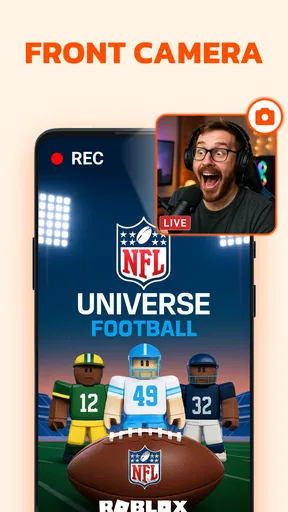
Facecam is another choice to make with a purpose. It can help when a reaction or a person’s explanation is part of the content, but it is unnecessary for a clean demonstration of menus or taps. Before a recording, I’d consider whether the camera view adds information or merely takes up space. That small decision makes a clip more intentional and is particularly useful when the screen itself contains details a viewer needs to inspect.
Editing inside the app may be enough for a quick trim or a simple polish, but I wouldn’t assume it replaces a dedicated editor for a more involved project. If a video needs detailed pacing, layered captions, or careful audio work, moving to a specialist editing app is the more sensible route. G1REC’s strength is the capture-to-share path for modest jobs; trying to force a simple recorder into a full production workflow can add friction rather than save time.
Where it fits among other recorders
Compared with a phone’s built-in screen recording, a separate app can be appealing when I want recording and basic editing together, or when I want a visible control that is easy to reach while demonstrating something. A built-in recorder may be the better choice if I prefer fewer apps and only need an uncomplicated capture. The right option depends on the job: I’d use the least complicated tool that reliably records the screen and sound I need.
Compared with a desktop capture setup, a mobile recorder is far more convenient for showing exactly what happens on a phone, but it is not automatically the best tool for polished lessons or long-form content. A computer workflow generally makes more sense when I need extensive editing or a carefully managed presentation. For a quick phone tutorial, game clip, or visual explanation, recording directly on the device avoids transferring the task to another setup.
Remaining barriers and who should look elsewhere
Even an approachable interface cannot make every recording situation effortless. Touch controls can be awkward if I need to operate the phone with limited hand movement, and a floating control may be inconvenient if it covers an important part of the screen. I’d check where the control sits during a short test and adjust my recording plan if it obscures the action. A demonstration that depends on precise, rapid taps may need a different approach or help from someone else.
Sound introduces its own practical limits. A noisy room can make narration difficult to understand, while speaking during a game may compete with audio the viewer needs to hear. Recording in a quieter place, or choosing a clip that does not require live narration, can help. I would also avoid capturing private messages or personal details while showing a route through the phone; closing sensitive screens first is a useful habit whenever a screen is being recorded.
I’d skip this app if I need a highly controlled production workflow, if I rely on accessibility options that a particular recorder must explicitly support, or if even a short test does not behave well on my device. Android version compatibility is one practical starting check: the current release requires Android 8.0 or later. If I’m using an older system, a built-in option already available on my phone may be a better fit. I would also compare the in-app purchase choices against my actual needs rather than paying for extras simply because they are offered.
Editing and sharing made easy
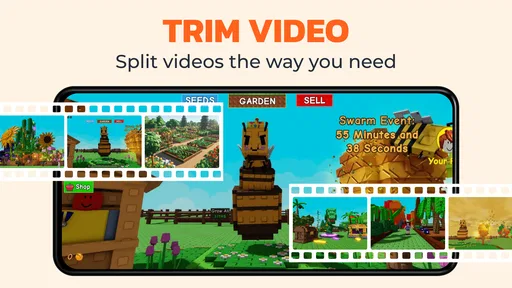
Once I have a recording, basic trimming is useful for removing the pause before I start speaking or the fumbling after I finish. I’d keep the edits modest when the clip is meant to teach: cutting too close to a tap can make the sequence confusing. Effects and stickers may suit a casual post, but for an instructional clip I’d prioritize legibility and a clear sequence over decoration. The best edit is often the one that removes distractions without changing what the viewer needs to understand.
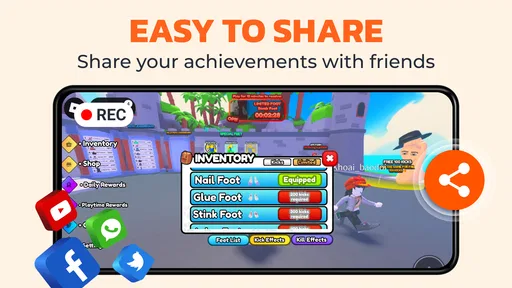
Sharing directly or saving the video to the device gives me two practical routes. Saving first is handy if I want to review the clip privately, check that no personal detail slipped into view, or make another edit before sending it. Sharing immediately is convenient when the recording is a quick answer and already looks right. I’d still watch the beginning and end once before sending; those are the places where setup pauses or unintended screen content are easiest to overlook.
Inclusive verdict
Overall, I see G1REC as a practical option for people who want to show something happening on an Android screen without turning the task into a production project. Its combination of screen capture, audio, facecam, basic editing, and straightforward sharing can serve casual creators and people making quick explanations. The most inclusive way to use it is to make deliberate choices: keep the pace readable, use only the audio and camera elements that help, and check the final clip before sharing.
My recommendation is conditional rather than universal. If you need a quick phone recording and value having a simple route from capture to a trimmed clip, it is worth trying. If you need advanced editing, a specialized accessibility workflow, or a recording setup that must meet exact professional requirements, I’d look at alternatives designed for those needs. A short test recording is the best way to find out whether its controls and results work for your particular device and habits.
So, I recently got my hands on the app, and let me tell you, it’s been quite the ride. If you’re someone who’s always on the lookout for a reliable screen recording app that doesn’t leave you hanging, then you might want to stick around and read what I’ve got to say.
Features That Stand Out
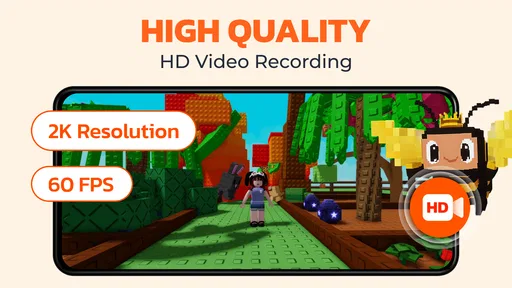
Now, let’s talk about what makes this app worth your time. The app comes packed with features that really make it shine in the crowded world of screen recording apps. One of the standout features is the ability to record in high definition. Whether you’re capturing gameplay, a tutorial, or just your home screen, you’re getting top-notch quality every time.
There’s also this cool option to record audio simultaneously. You can choose between recording internal audio, external audio, or both. This is a game changer, especially if you’re trying to narrate over your videos or capture game audio directly.
The User Experience
Let’s get real about the user experience. One of the things I appreciate about G1REC is how smooth it runs. I’ve tried a bunch of screen recorders in the past, and lag was always a bummer. But with G1REC, everything runs like butter. The recordings are consistent, and I didn’t notice any drops in frame rate, which is a huge plus.
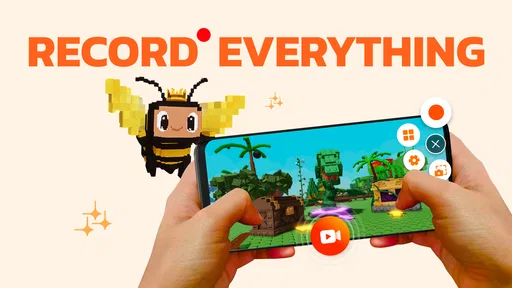
The app also doesn’t bombard you with ads, which is a relief. You can get into the zone without annoying pop-ups disrupting your flow. Plus, there’s a handy floating button that makes starting and stopping recordings super convenient. It’s the little things, you know?
Editing and Sharing Made Easy
Once you’ve got your recording, G1REC makes it a breeze to edit your videos. The in-app editor is pretty robust, offering basic trimming and cutting tools. You can also add some snazzy effects and stickers if you’re into that. It’s not a full-fledged editing suite, but it’s got enough to polish up your recordings without needing another app.
Sharing is also straightforward. You can upload your creations directly to social media platforms or save them to your device. It’s nice not having to jump through hoops to get your content out there.
Final Thoughts
So, what’s the verdict? If you’re searching for a reliable and user-friendly screen recording app, Screen Recorder - G1REC is definitely worth checking out. It’s packed with features that cater to both casual users and more serious content creators. The simplicity and efficiency make it a standout option.
Give it a go, and you might just find it’s exactly what you’ve been looking for. Whether you’re capturing epic game moments or creating tutorials, G1REC has got your back! And hey, it’s free to download, so there’s really nothing to lose.
Pros
- Easy-to-use interface for quick recording.
- High-quality video output up to 1080p.
- No watermark on recordings.
- Supports external audio recording.
- Flexible customization options available.
Cons
- Contains in-app ads during usage.
- Limited editing features post-recording.
- Consumes significant battery power.
- Requires Android 5.0 or higher.
- Occasional lag on lower-end devices.
FAQs for Screen Recorder - G1REC
What features does Screen Recorder - G1REC offer?
Screen Recorder - G1REC provides a comprehensive set of tools for capturing high-quality video and audio from your device’s screen. It offers features such as HD recording, customizable frame rates, and the ability to record internal and external audio. Additionally, it includes editing tools to trim and enhance recordings directly within the app.
Is Screen Recorder - G1REC user-friendly for beginners?
Yes, Screen Recorder - G1REC is designed with a user-friendly interface that caters to both beginners and experienced users. The intuitive layout and straightforward controls make it easy for anyone to start recording their screen with just a few taps. In-app tutorials and guides are also available to assist new users.
Does Screen Recorder - G1REC impact device performance?
Screen Recorder - G1REC is optimized to minimize its impact on your device’s performance. However, like any screen recording app, it requires processing power and may cause slight performance dips during intensive tasks. It’s recommended to close unnecessary apps to ensure smooth recording sessions.
Is Screen Recorder - G1REC free to use?
Screen Recorder - G1REC offers both free and premium versions. The free version includes basic recording features with some limitations, such as watermarks or limited editing options. The premium version, available via in-app purchases, unlocks advanced features like watermark removal and enhanced editing capabilities.
What are the system requirements for Screen Recorder - G1REC?
Screen Recorder - G1REC requires Android or iOS devices running on relatively recent operating systems. For Android, it typically supports devices running Android 5.0 (Lollipop) and above, while iOS users should have iOS 11.0 or later. Ensure your device meets these requirements for optimal functionality.


